
Help
How each part of a course and a lesson works, and where to find it.
No section matches. See the contents.
A course page
On every course page, such as College Algebra and Trigonometry.
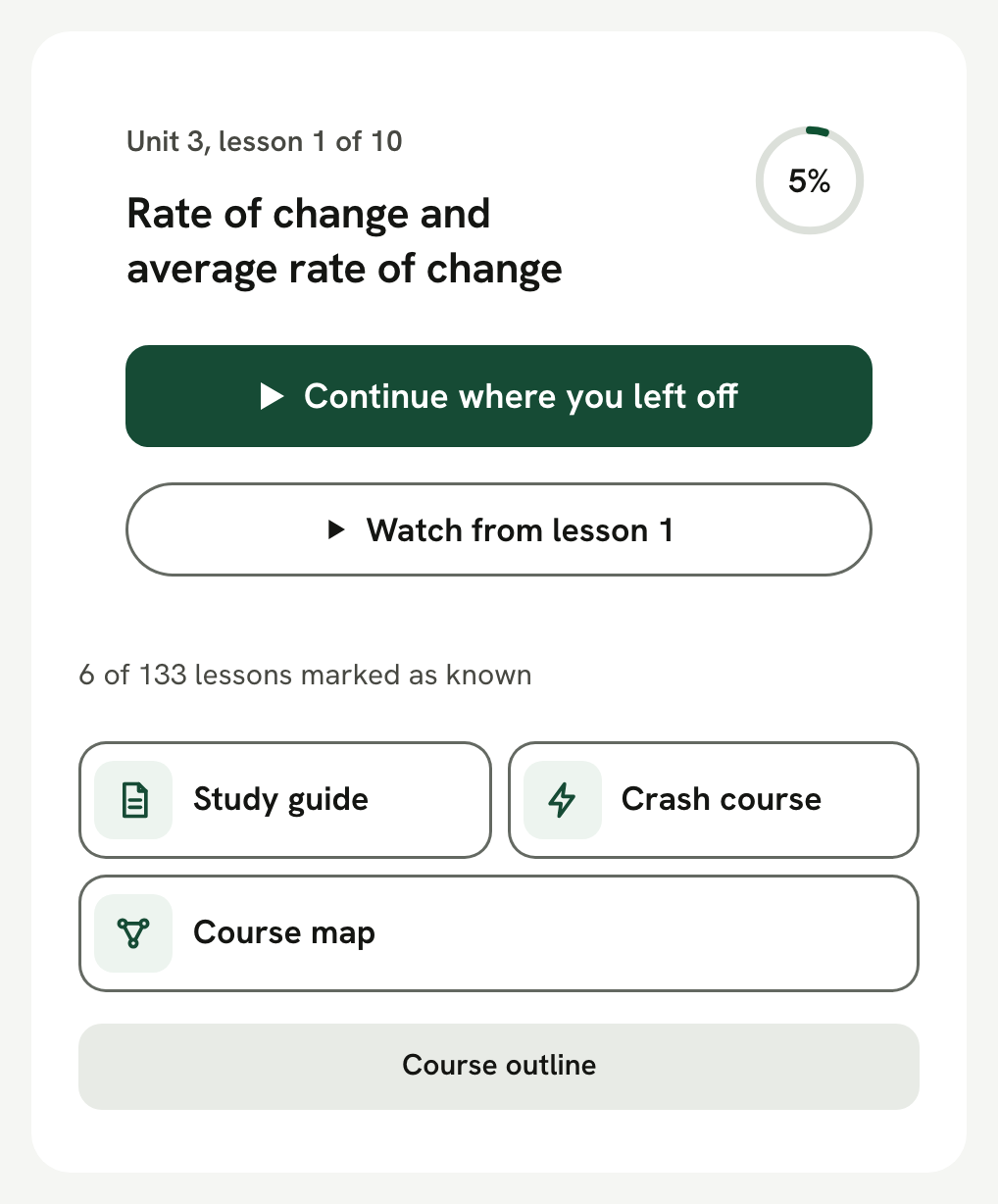
Continue opens the lesson you left. On your first visit the key reads Start lesson 1.
Each unit says how many of its lessons are done. A lesson counts as done when you mark it I can explain this at the end of the lesson.
Every lesson has a level: Level 1 · Foundations or Level 2 · Building. Levels are estimated from each lesson's worked steps, new words and the lessons it leans on. Course map shows the whole course as a map.
How a lesson works

Every lesson has seven parts in the same order: In plain words, Picture it, Why, The rule, How, Worked example and The trap. Each part's number sits on a small green block, and the smaller parts inside one read 4.1, 4.2 and on.
Simple shows the lesson's short version, where it has one. Full shows every part. The choice is kept on this device.
On a wide screen the course outline is on the left and the study tools are on the right. On a phone the study tools open from Study in the bar at the bottom of the screen.
Play: Listen or Watch
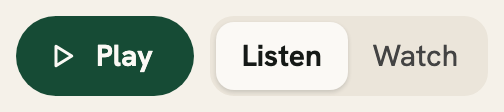
Play starts the lesson. With Listen chosen, a voice reads it and the page follows the sentence being read. With Watch chosen, the lesson plays itself and solves each worked example one step at a time.
While a lesson plays, the bar at the bottom of the screen pauses it and moves back or forward through it. The voice's speed is in the reading settings. Your choice of Listen or Watch is kept for every lesson.
The AI tutor
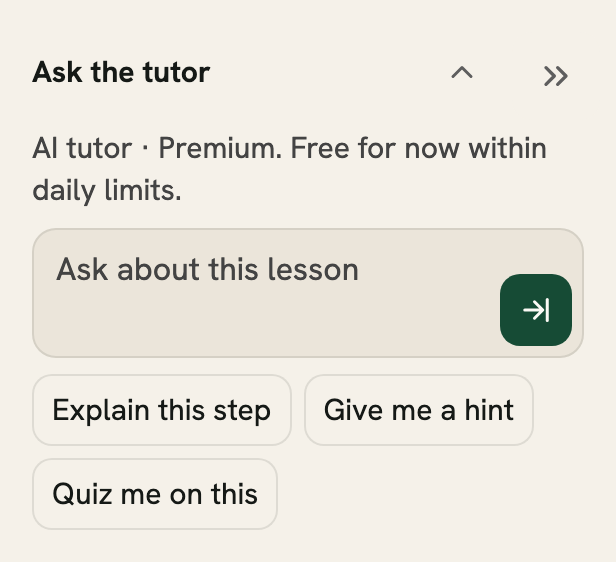
AI tutor · Premium. Free for now within daily limits.
Type a question in Ask the tutor, or press a starter: Explain this step, Give me a hint or Quiz me on this. Select words in a lesson and choose Ask the tutor to send them with your question.
On a lesson outside the units the tutor reads, the study tools name the nearest unit that has it and link to all of them. About the tutor
Notes and flash cards
Select words in a lesson to highlight them or to add a note. Your notes are listed under Notes in the study tools.
Flash cards show a word or a rule. Turn one over, then choose Again or Good: a card you mark Again comes back. While a lesson is read aloud, a quick recall question can wait at the end of a worked example. Answer it, skip it, or turn the questions off.
The Pomodoro
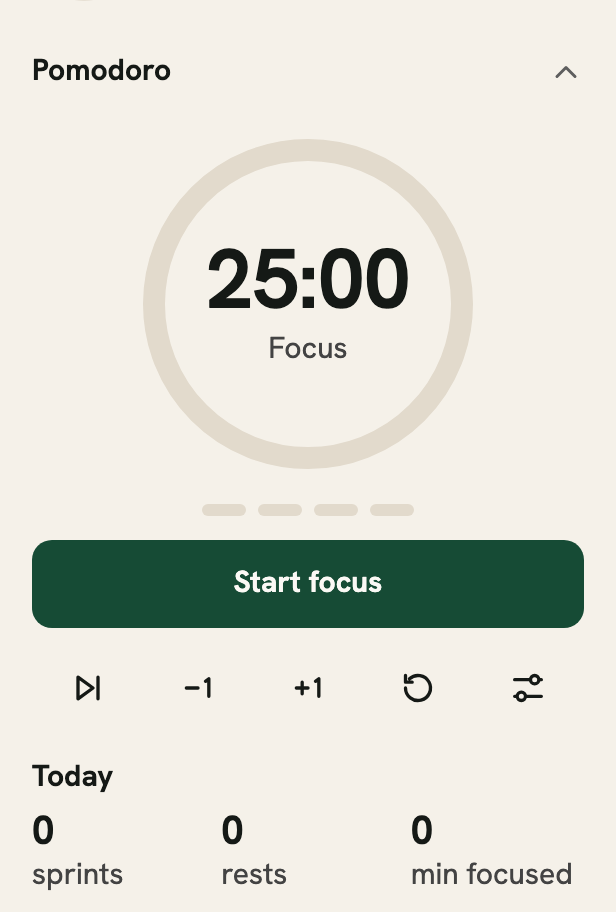
The Pomodoro in the study tools times a focus sprint, then a rest. Start focus begins it. Its keys skip to the next phase, add or take off a minute, and reset the timer, and Timer settings holds its lengths. Under Today it counts what you have done.
Words and their cards
A word with a dotted line under it has a card. Hover, focus or tap it to read its meaning. Words in this lesson, in the study tools, lists every one, each linked to the course glossary.
Sources
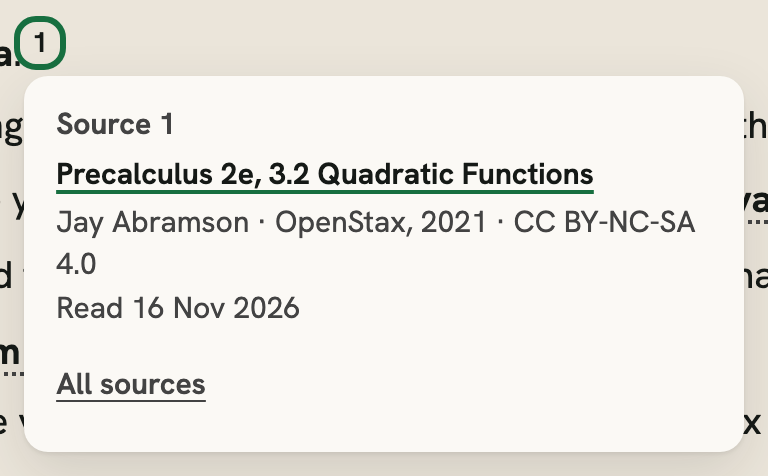
A small raised number after a sentence says where it comes from. Hover, focus or tap it to see the source. Escape, or a tap somewhere else, closes it. Every source is listed at the end of the lesson.
Pictures
Every picture fits its column. Hover or focus it to show zoom out, fit, zoom in and full screen; on a phone, tap it. Drag a zoomed picture, or use the arrow keys, to move around it.
Practice
Practice gives one question at a time, ten to a round. Type or pick an answer and press Check. A hint gives you another way in.
Missed questions come back first. A check can be wrong: I got it and I missed it let you change the mark.
Search

Press / or the magnifier in the header and type part of a lesson's name. Each result shows its course, unit, level and time. Enter opens it, the arrow keys move through the list, and Escape or a click outside closes the search.
On a course page and in a lesson, search opens the course's outline with Search this course.
Reading settings
Aa in the header holds the reading settings: text size, line spacing, a reading font, higher contrast, underlined links, a line guide, the voice's speed and whether figures move as you read. Reader view shows the lesson alone in one column. The moon or sun beside Aa switches between the light and dark looks. Each choice is kept in this browser.
Keyboard
- Tab and Shift+Tab
- Move between links and controls.
- Enter or Space
- Press the focused button. Enter opens a focused link.
- Escape
- Close an open panel, a source or the search.
- /
- Open the search.
- [ and ]
- The previous and the next lesson, while you read one.
These keys wait while you type in a field.
Your progress
Your study marks and settings are kept in this browser on this device. My study data lets you export, import or remove your records. Export before clearing site storage or moving browsers.
Found a mistake in a lesson? Report a mistake.